
What Is the Price of a Commercial Coffee Machine ?
Free shipping on orders over $59 in Quebec. Édika's showrooms, technical center, shipping department, and offices will be closed on Monday, October 12, 2026, for Thanksgiving.
Free shipping on orders over $59 in Quebec. Édika's showrooms, technical center, shipping department, and offices will be closed on Monday, October 12, 2026, for Thanksgiving.

Your cart is empty
To change the date of your next order, please contact us at commande2@edika.com or at 514 374 0683 #137.
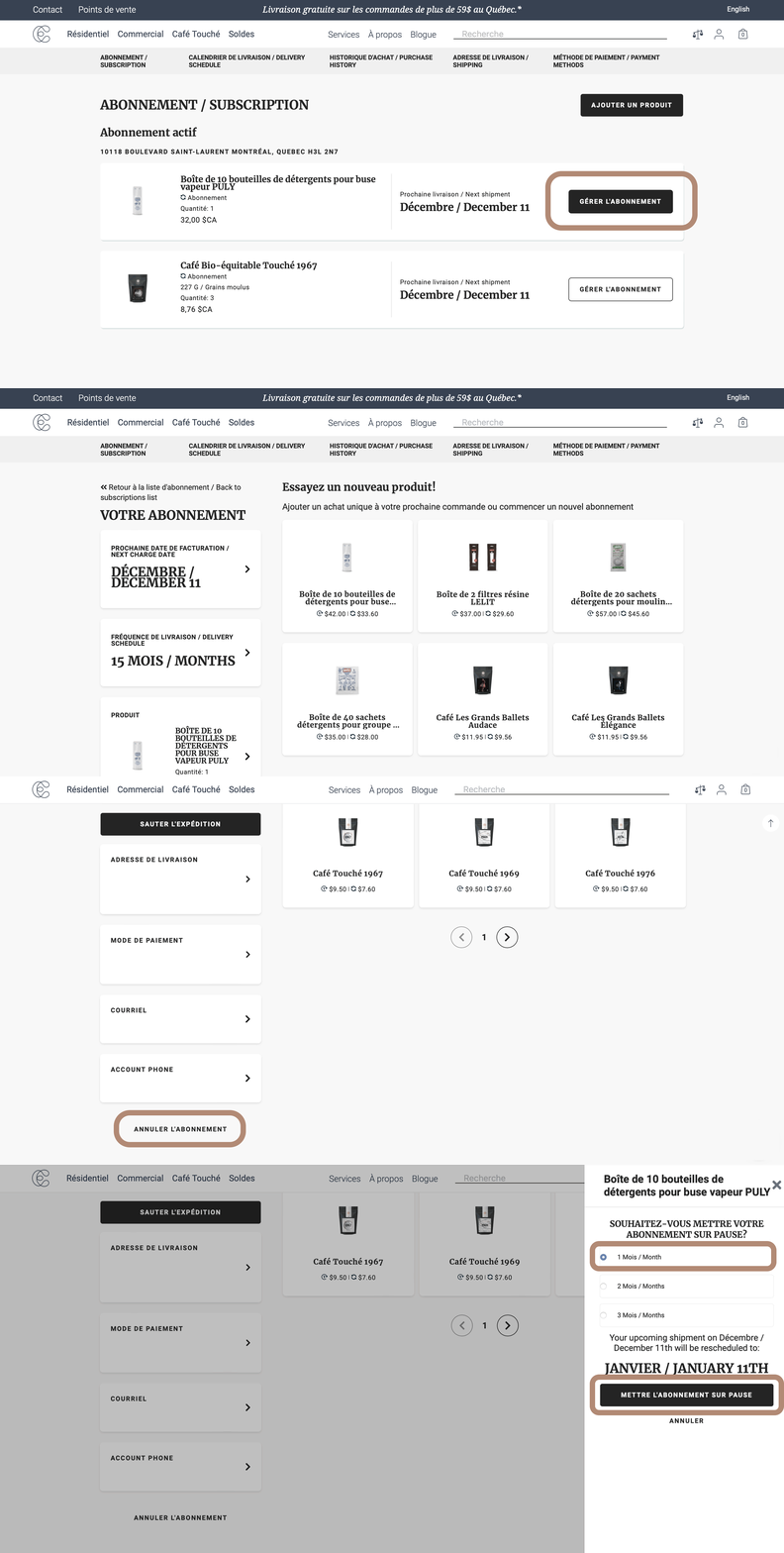
Log in to your account.
To access your subscription portal, you must have already placed an order with a subscription. Each action only concerns one product at a time. Repeat the procedure for each product.
Once in your customer portal:
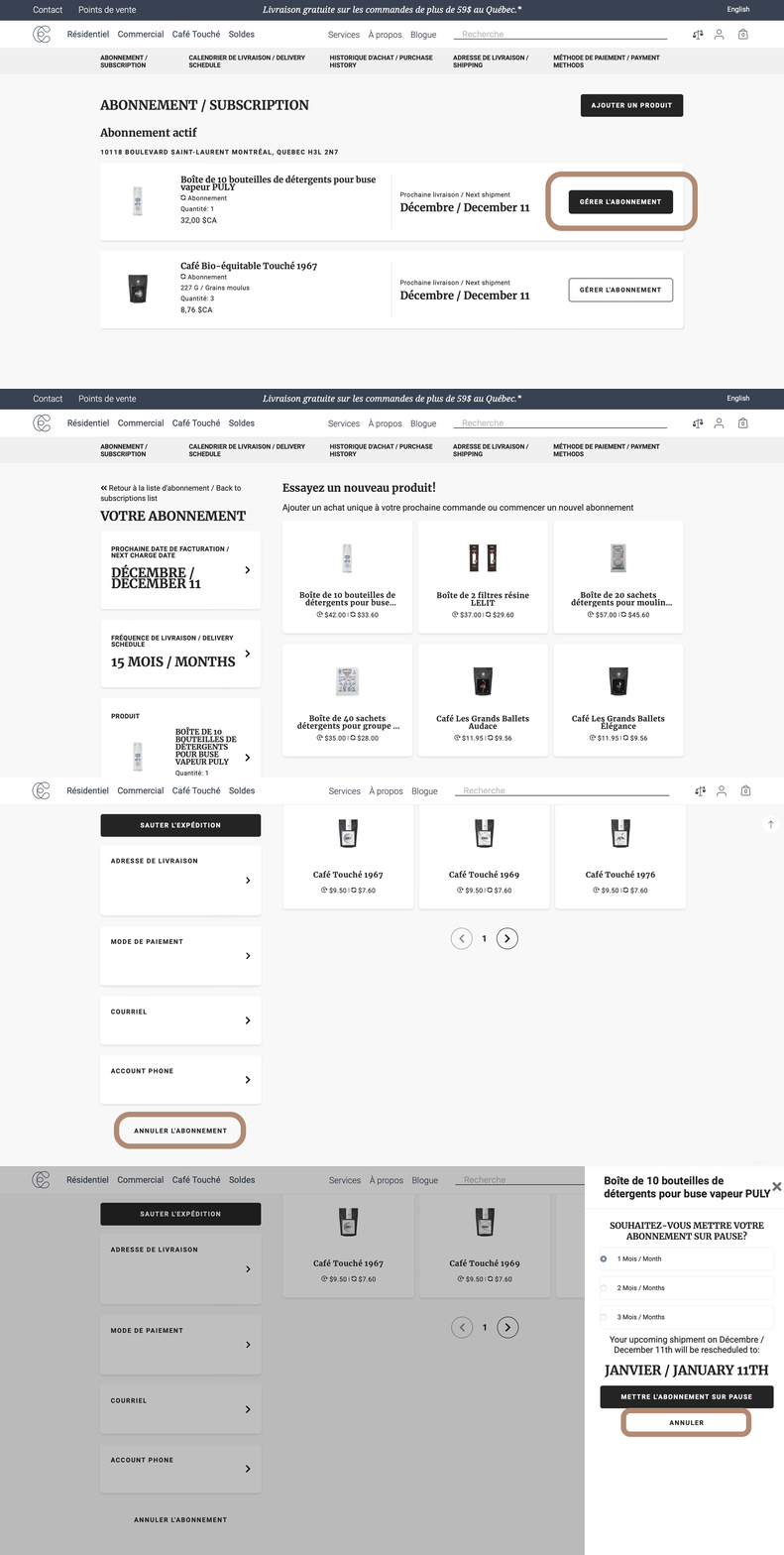
Please note that by subscribing, you commit to a minimum of three deliveries before you can cancel.
Log in to your account.
To access your subscription portal, you must have already placed a subscription order. Each action only concerns one product at a time. Repeat the procedure for each product.
Once in your customer portal:
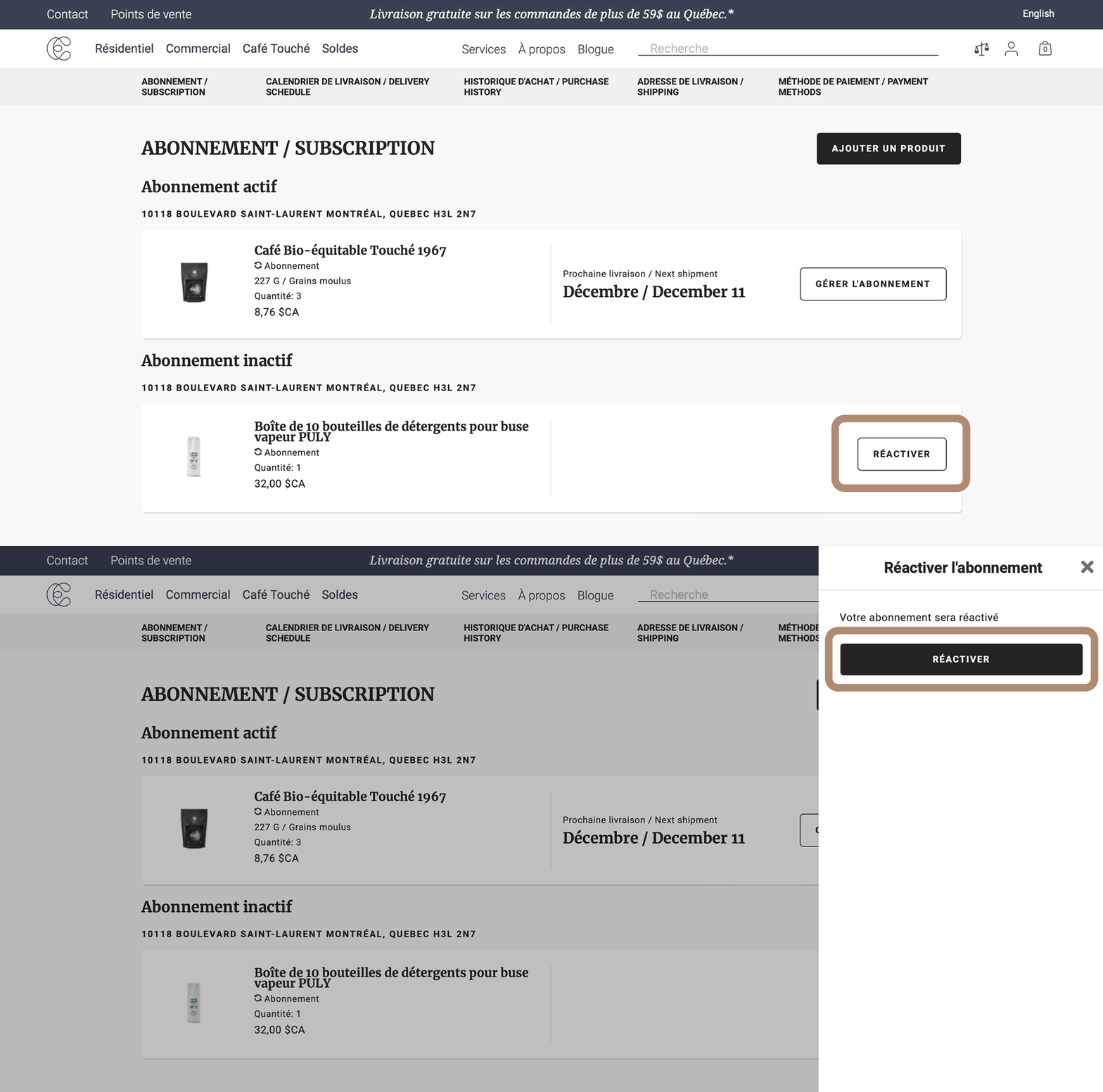
Log in to your account.
To access your subscription portal, you must have already placed an order with a subscription. Each action only concerns one product at a time. Repeat the procedure for each product.
Once in your customer portal, you can reactivate your subscription after cancelling or pausing it:
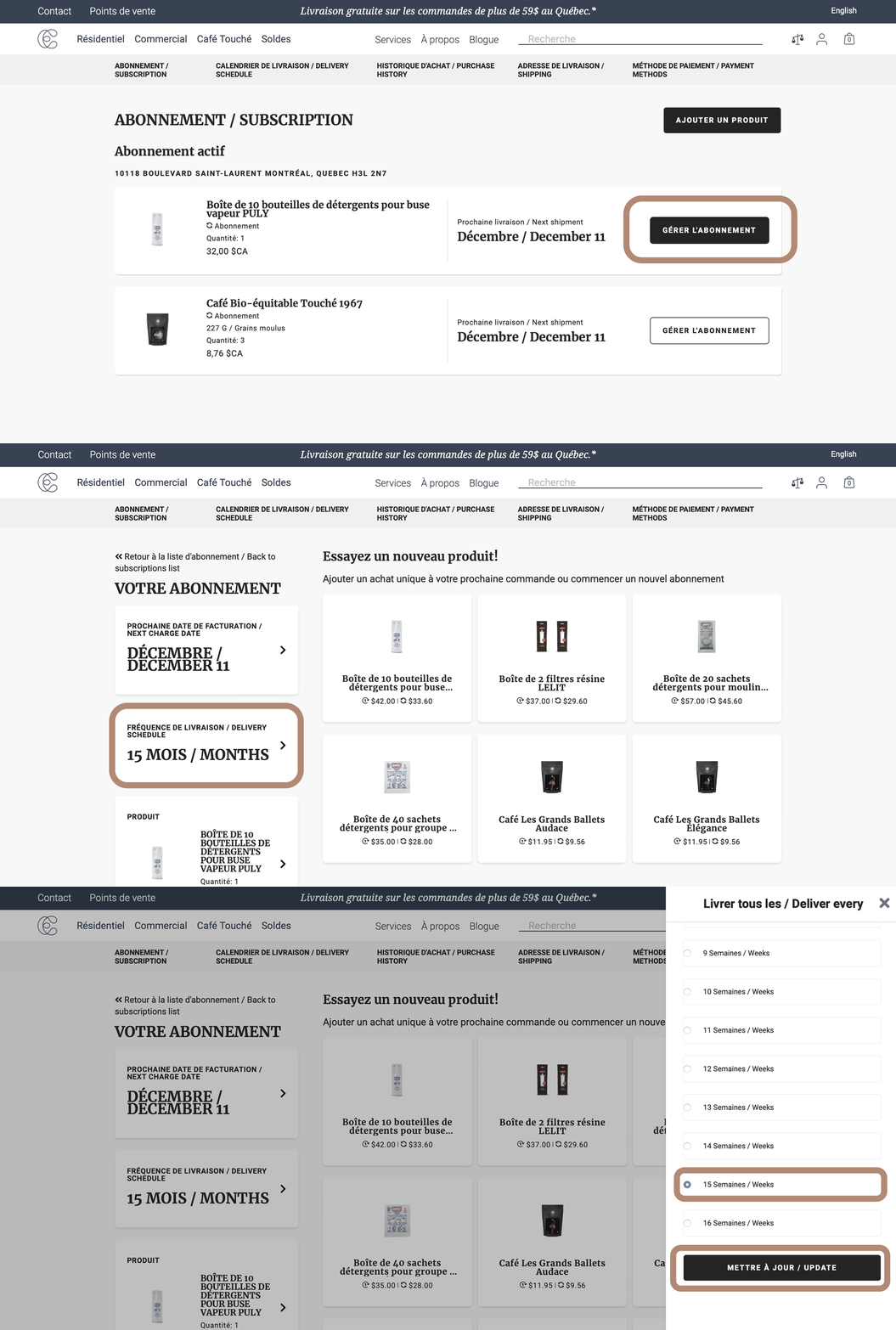
Log in to your account.
To access your subscription portal, you must have already placed an order with a subscription. Each action only concerns one product at a time. Repeat the procedure for each product.
Once in your customer portal:
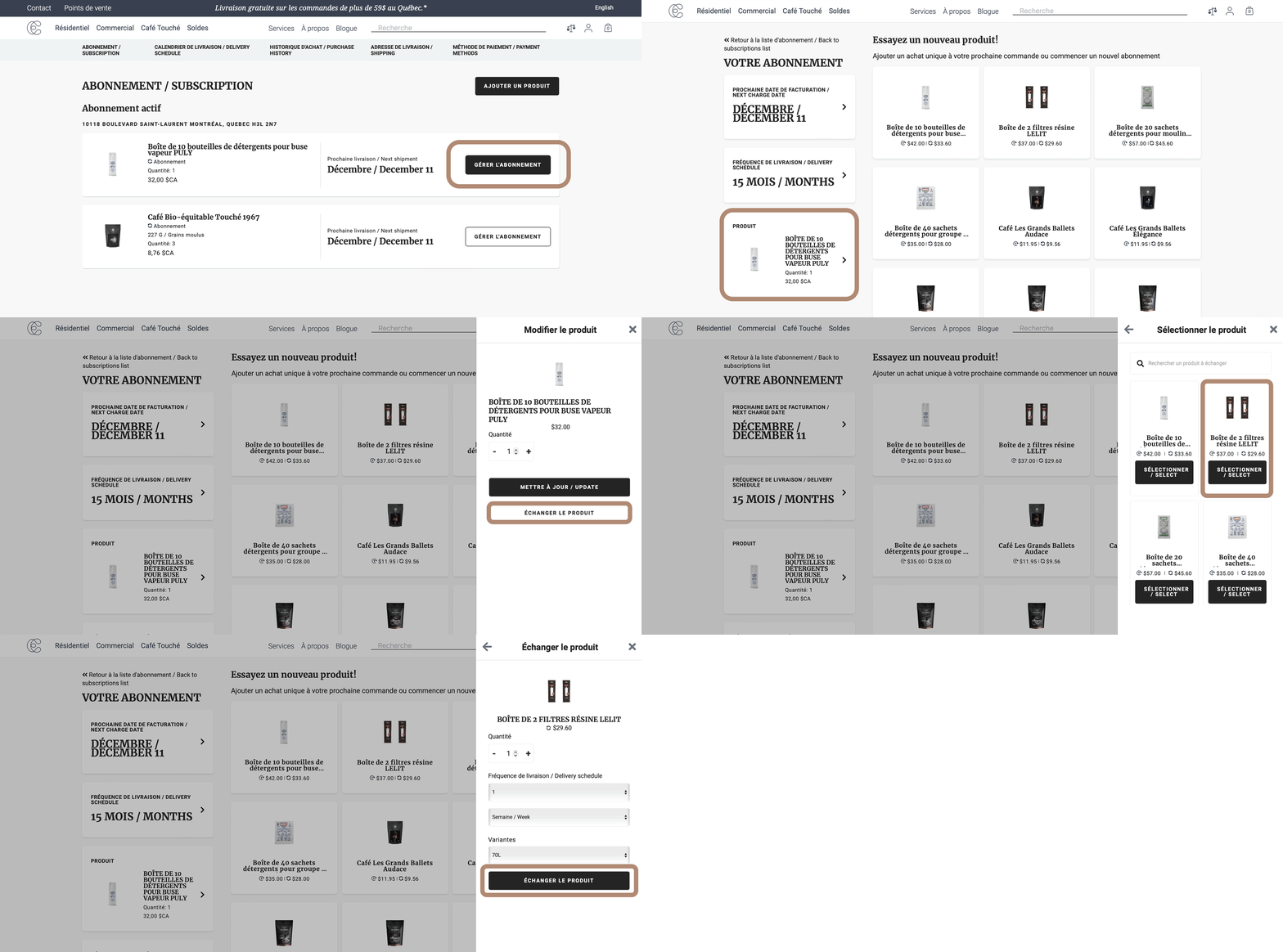
Log in to your account.
To access your subscription portal, you must have already placed a subscription order. Each action only concerns one product at a time. Repeat the procedure for each product.
Once in your customer portal:


Get your welcome discount and our best coffee tips.
Compare (${listProductsToCompare.length}/4)
Image
Title
Price
${ item }

